
Free Account Protection
Get free protection for your accounts
Optional, but recommended: get breach alerts and simple tips to reduce account takeover risk.
Free. No spam. Unsubscribe anytime.
Instant Screen Recorder
Your file is ready. Download it from the Recording Preview tab opened by the extension.
Free Account Protection
Optional, but recommended: get breach alerts and simple tips to reduce account takeover risk.
Free. No spam. Unsubscribe anytime.
Look for a tab called Recording Preview.

Click Download MP4 or Download WebM in the Recording Preview tab.
Your recording saves locally to your standard Downloads folder.
Show the preview tab with the Download button visible to reduce confusion after recording.
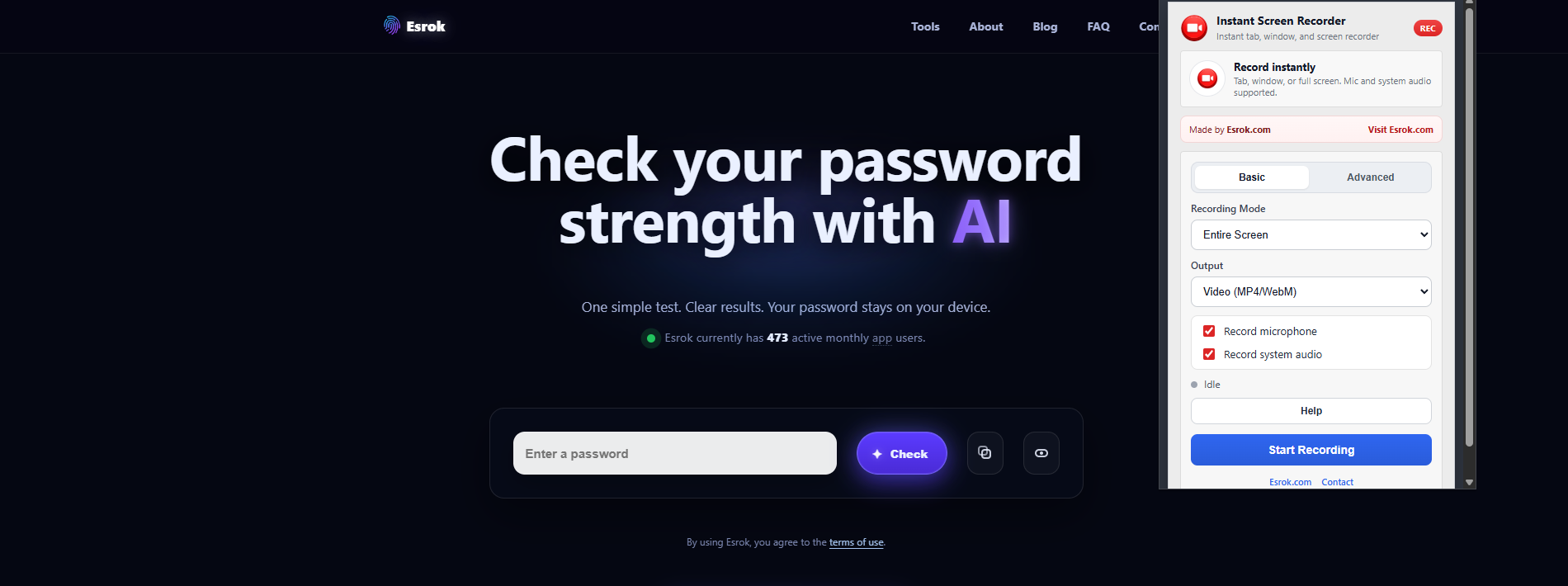
screenshotinstantscreenrecorder.png in the site root and show the Download button in the preview tab.If your recording is not in Downloads yet, it is usually still waiting in the preview tab.
Check the Recording Preview tab and click Download.
Need help? Contact Esrok support
Explore more practical browser tools and lightweight utilities built by Esrok.