
Processing stops
The extension is no longer running, so it cannot capture or adjust audio from any tab.
Normalize Volume · Uninstalled
Normalize Volume can no longer process tab audio in this browser. This page explains what was removed, what remains separate, and how to solve the most common issues if you want to try again.
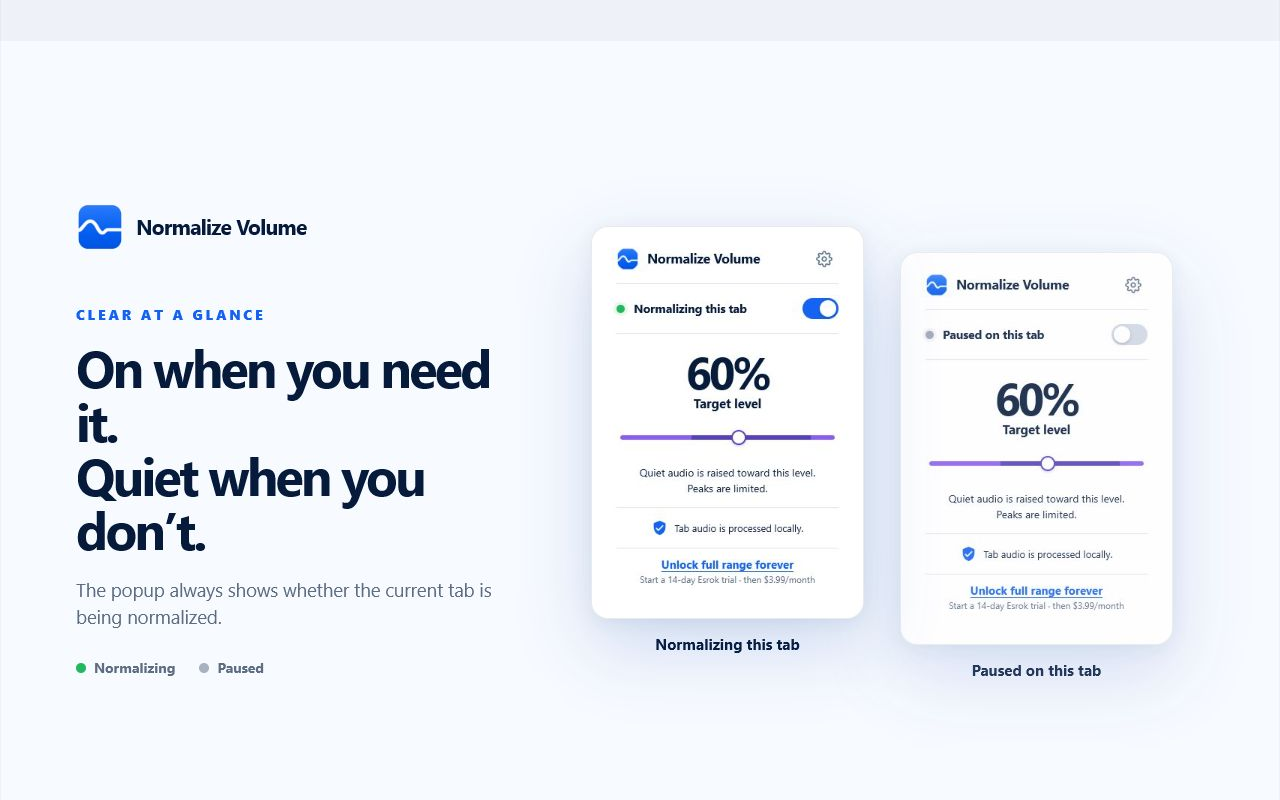
After uninstalling
Chrome removes the extension and stops its access to browser features.
The extension is no longer running, so it cannot capture or adjust audio from any tab.
The Normalize Volume icon and its target-volume controls are removed from Chrome.
Audio returns to the behavior provided by the website, Chrome, and your device settings.
Important distinction
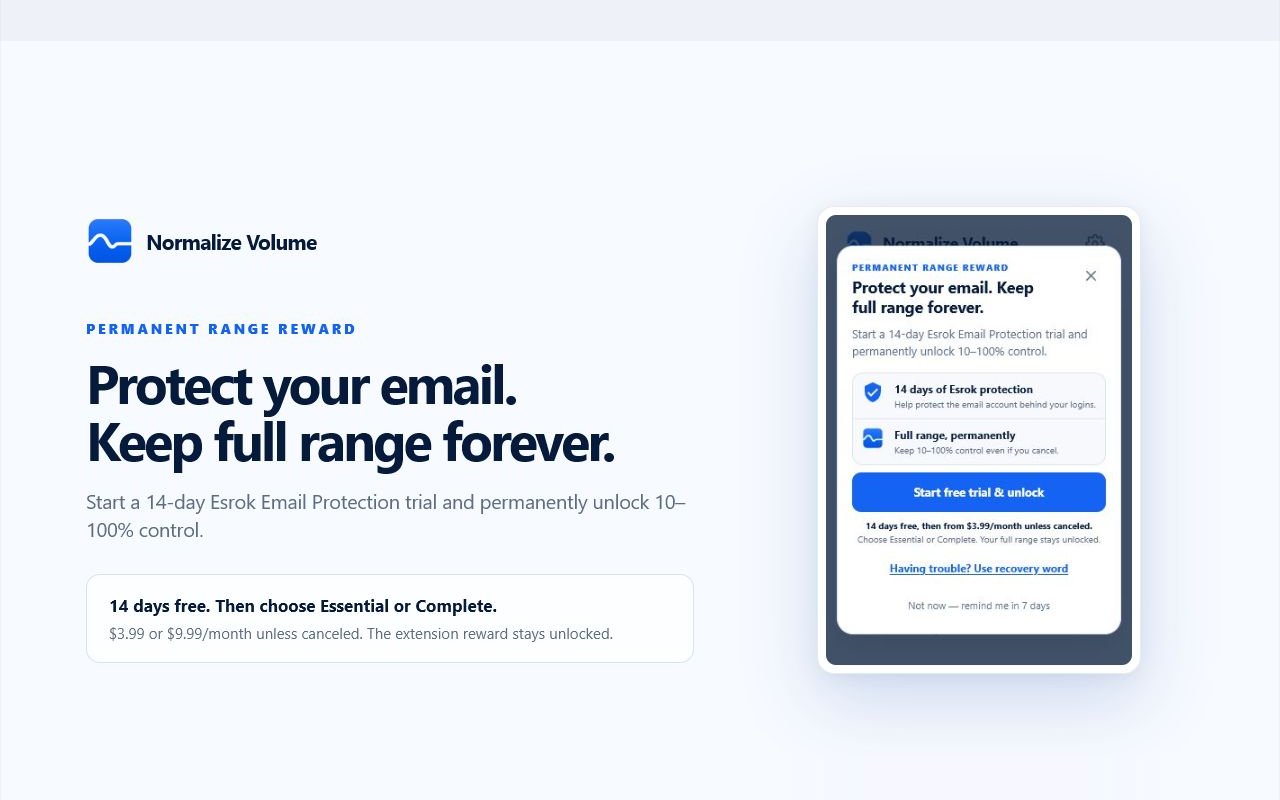
Chrome can remove the browser extension, but it cannot manage a separate Esrok account, trial, or subscription. If you used Esrok’s optional protection or range-unlock flow, check that service separately.
If you never created a separate Esrok account or started a plan, there is nothing to cancel here.
Common fixes
These checks solve many cases without changing system-wide sound settings.
Start playback first, open Normalize Volume from the same tab, enable it, then adjust the target. The extension acts on the tab where it was started.
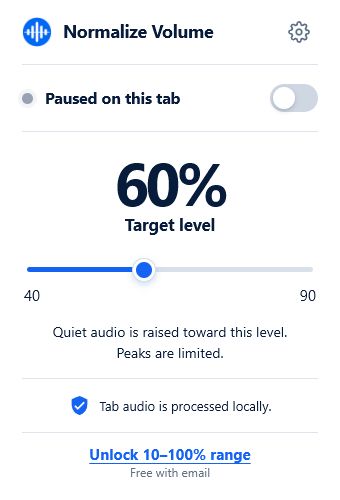
Pause processing, switch to the tab producing sound, and start the extension there. It does not automatically follow you across tabs.
Chrome blocks audio capture on internal pages such as chrome://, and certain protected media may also reject capture. Test on a regular audio or video page.
Check the website player, Chrome tab mute setting, Windows or macOS output, and your speakers or headphones before enabling the extension again.
Try again
Open Normalize Volume in the Chrome Web Store and choose Add to Chrome.
Open Chrome’s Extensions menu and pin Normalize Volume so its status is easy to check.
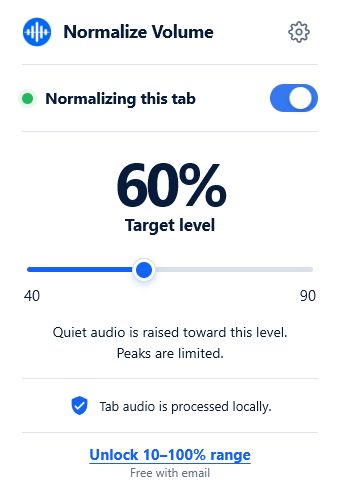
Play audio, open the popup on that tab, choose a target, and confirm that the active state appears.
Include the website, your Chrome version, and whether the popup showed active or paused. That gives us something concrete to investigate.
Verify the removal
The uninstall page opening is normally enough evidence, but you can verify the browser state directly without installing another cleanup program.
The blue Normalize Volume icon should no longer appear on the toolbar or inside Chrome’s Extensions menu. A missing pinned icon alone is not conclusive, so continue to the extension list.
Enter chrome://extensions in the address bar. Normalize Volume should not have a card on that page. If a card remains, use its Remove button and accept Chrome’s own confirmation.
Reload any media pages that were open during removal. This returns them to a clean playback state and clears a connection that may have existed before Chrome removed the extension.
Data and accounts
Removing browser code, clearing local preferences, and managing a web subscription are separate actions. The table below shows which system controls each one.
| Item | After uninstalling | Where to manage it |
|---|---|---|
| Tab-audio processing | Stops because Chrome removed the extension. | No further action is needed; reload an old media tab if its playback behaves unexpectedly. |
| Extension permissions | Are no longer available to Normalize Volume in that Chrome profile. | Verify on chrome://extensions. |
| Saved target preference | May be cleared with extension storage, so do not rely on it returning after reinstalling. | Choose the target again in the popup after reinstalling. |
| Separate Esrok account or plan | Is not cancelled by Chrome. | Use My Protection or contact Esrok support. |
| Audio recordings | There are no Normalize Volume recordings to delete because the extension does not record or upload tab audio. | See the privacy policy for the product’s data practices. |
Answers
No. Once Chrome removes the extension, it can no longer use tab capture, storage, or other extension permissions in that browser profile.
No. Normalize Volume processes the selected tab’s audio locally in the browser and does not upload or record the audio you play.
Chrome may clear extension storage when an extension is removed, so you should expect to choose your preferred target again after reinstalling.
Use My Protection or contact Esrok support. Uninstalling a Chrome extension cannot cancel a separate web subscription.