
Clearer controls
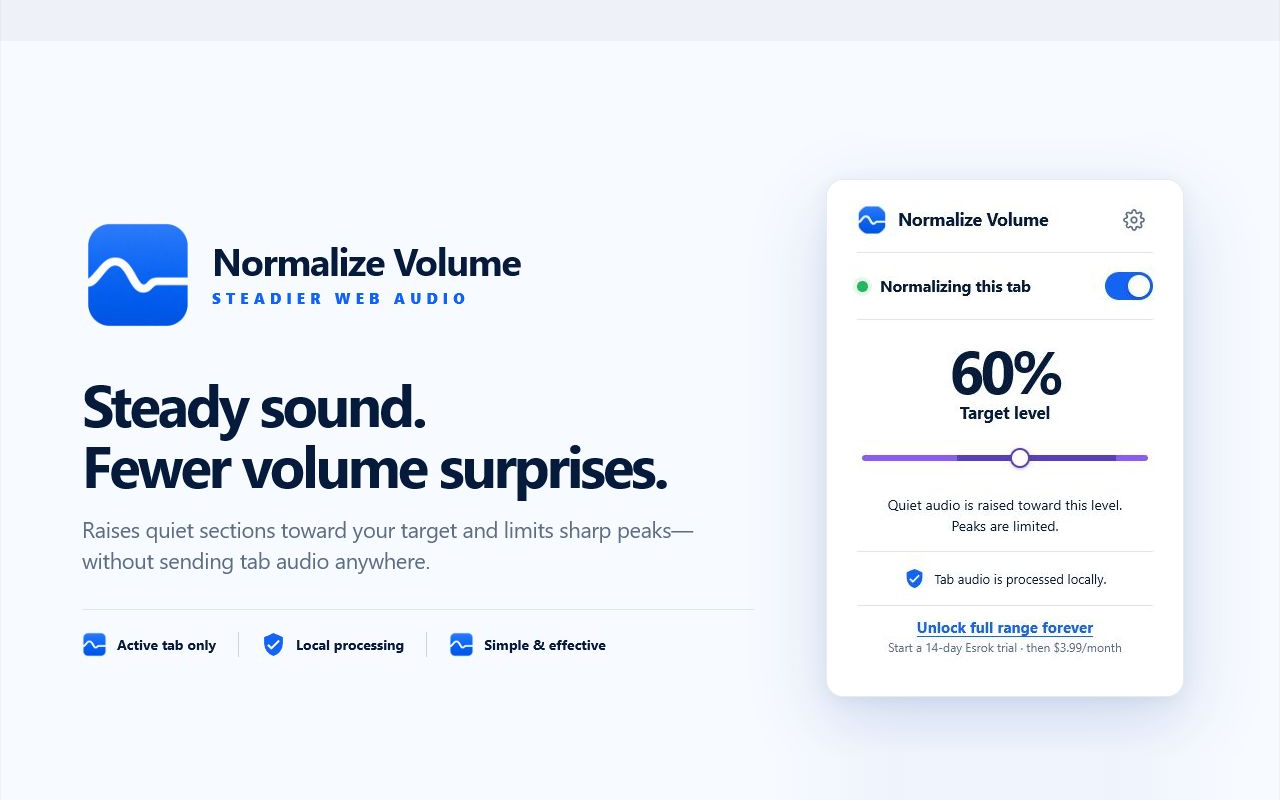
The target-volume control, included range, and optional wider range are grouped together so the main action is easy to find.
Normalize Volume · Version 1.09
Version 1.09 keeps the controls focused: choose a target, see whether processing is active, and keep the current tab’s audio within a more comfortable range.
Chrome normally updates installed extensions automatically. The Store listing can take time to display a newly submitted version.
Release notes
This release refines the popup and makes the extension’s current state easier to understand at a glance.
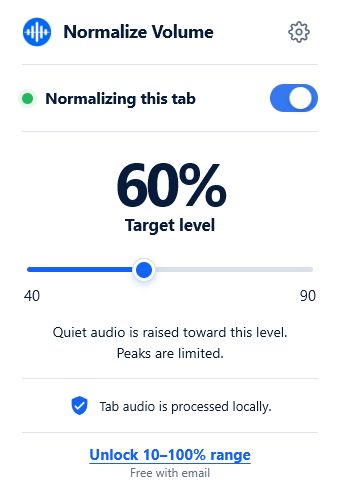
The target-volume control, included range, and optional wider range are grouped together so the main action is easy to find.
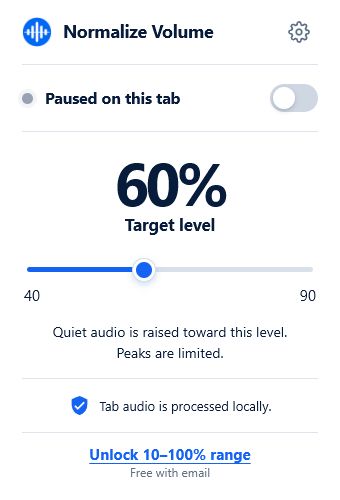
The popup clearly distinguishes active processing from a paused state. You can confirm the extension is running before returning to your audio.
Normalize Volume works with the audio in the tab you activate it on. Moving to another audio tab requires starting it there.
Version check
Type chrome://extensions into Chrome’s address bar and press Enter.
The version number appears on its extension card. Version 1.09 is the release described here.
If an older version remains, enable Developer mode and use Chrome’s Update button, then reload the audio tab.
Privacy by design
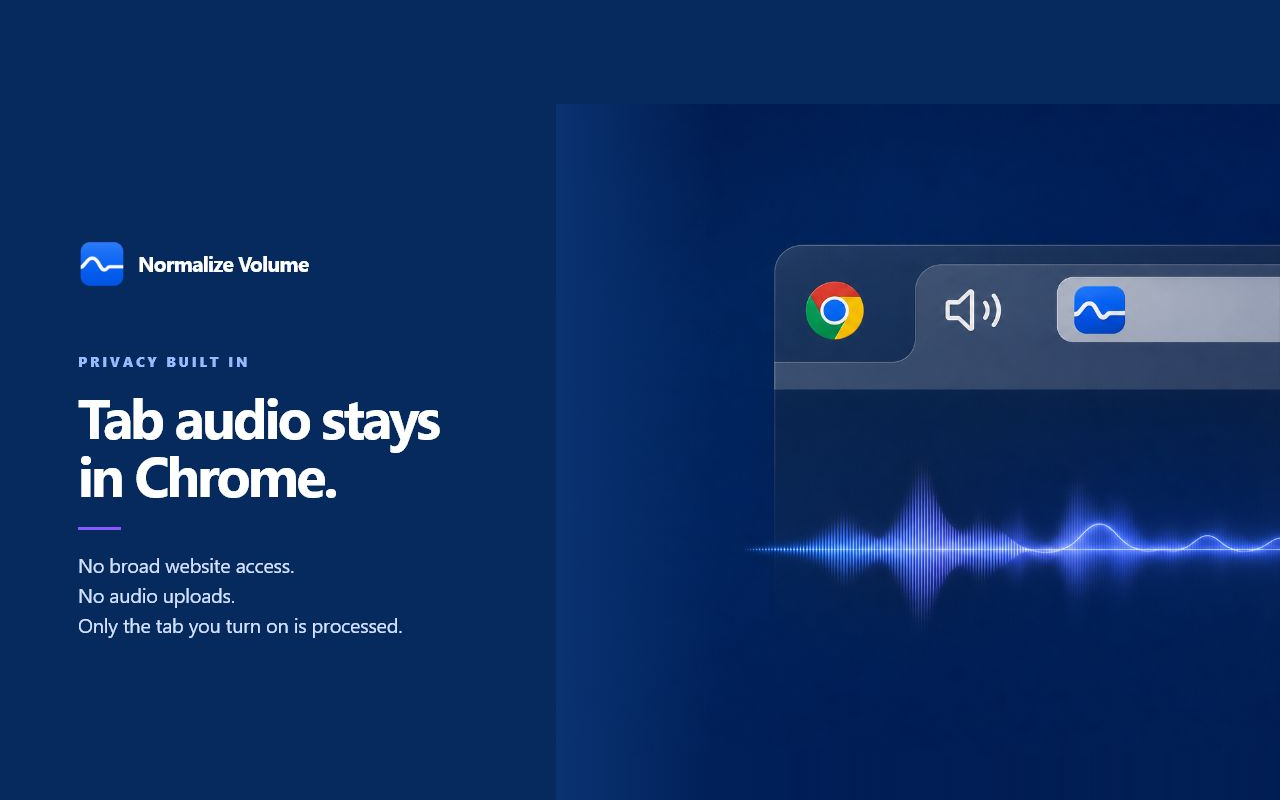
Normalize Volume uses Chrome’s tab-audio features to process the active tab locally. It does not upload or record the audio you play.
Volume range
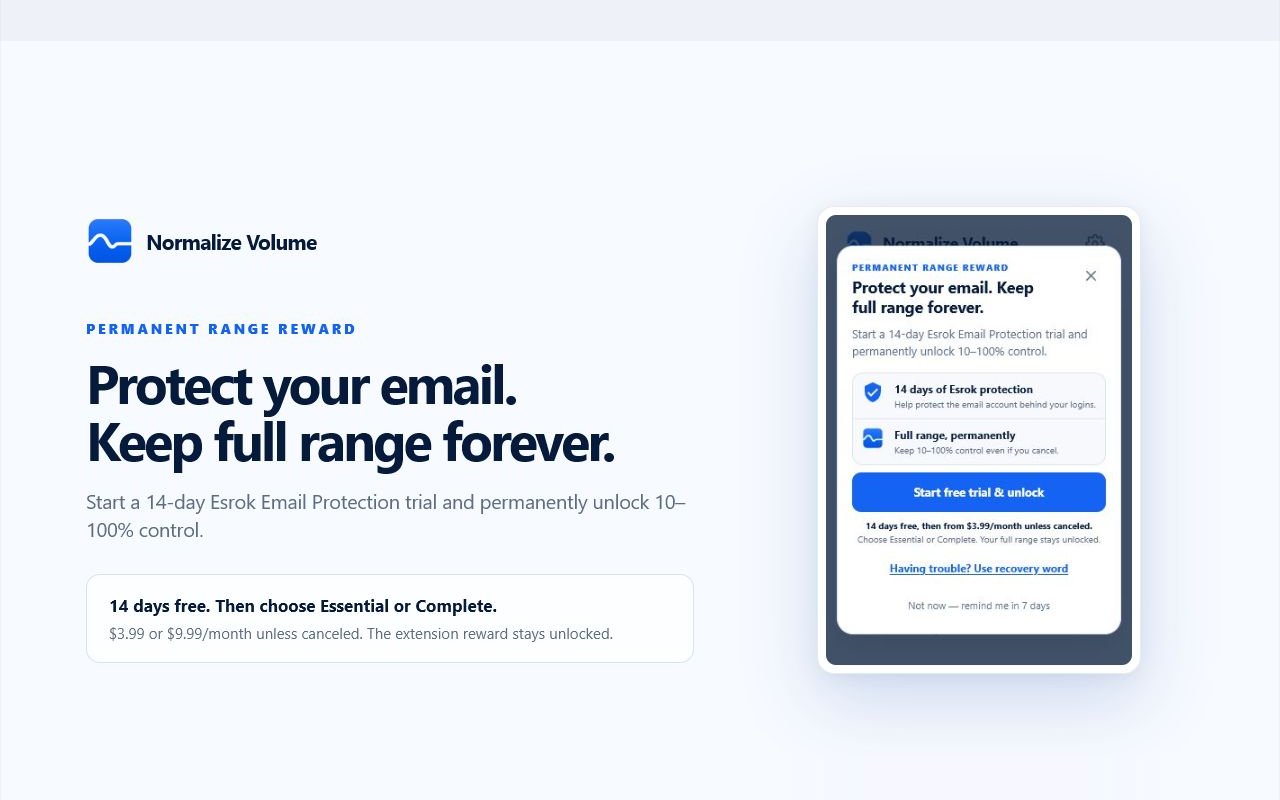
The standard range covers everyday listening. If you want more control, the optional Esrok flow can extend it to 10%–100%. The popup shows the available range before you change anything.
The wider range is optional; core volume normalization remains available without it.
After updating
An existing tab may still be using the previous extension process. Reload it, play audio, then start Normalize Volume again.
Open the popup while you are on the tab producing sound. Starting it on a different tab will not affect the audio you meant to control.
Use the popup to pause processing, wait a moment, then enable it again. Confirm that the active status is shown.
Chrome does not allow extensions to capture audio from internal pages such as chrome://. Try a normal website with playing audio.
Post-update check
An extension update can replace its background process while an already-open media tab still holds the previous connection. This checklist separates that temporary state from a genuine defect.
Open chrome://extensions, locate Normalize Volume, and confirm the number shown on its card. If it is not 1.09 yet, Chrome may still be completing the staged update.
Use a normal public page that plays audio. Reloading discards the old tab connection and lets the updated extension establish a fresh one.
Open the popup and note the target percentage. A routine update should preserve stored preferences. If the value reset, choose your preferred target again and mention the reset when contacting support.
Start playback, switch processing on, and confirm the active message. Pause it once to compare the same passage, then switch it back on if you want to continue using it.
Change scope
Release notes are more useful when they document boundaries as well as visible additions.
| Area | Version 1.09 behavior | What this means for you |
|---|---|---|
| Popup status | Active and paused states are visually distinct. | You can verify whether the current tab is being processed without guessing. |
| Target control | The target and available range are presented together. | The main listening control is easier to identify; system volume remains separate. |
| Tab scope | Processing remains tied to the activated tab. | The update does not grant silent control over every tab or every site. |
| Privacy model | Audio continues to be processed locally in Chrome. | The update does not introduce audio recording or upload to Esrok. |
| Existing preferences | Chrome extension storage continues to hold the target setting. | A normal update should not require full setup again, although a tab reload may be needed. |
Answers
Store review and rollout can take time. Chrome also updates extensions in stages. Check chrome://extensions for the version actually installed in your browser.
No. Stored preferences should remain available after a normal Chrome update. If something looks wrong, reload the audio tab and reopen the popup.
It works on many ordinary audio and video pages. Chrome internal pages and certain protected media cannot be captured by extensions.
Tell us the site, your Chrome version, and what the popup says. Please do not include passwords or private account details.