
Pin the blue wave
Click Chrome’s puzzle icon, find Normalize Volume, and select the pin. The blue wave icon will stay within reach on the toolbar.
Installed successfully
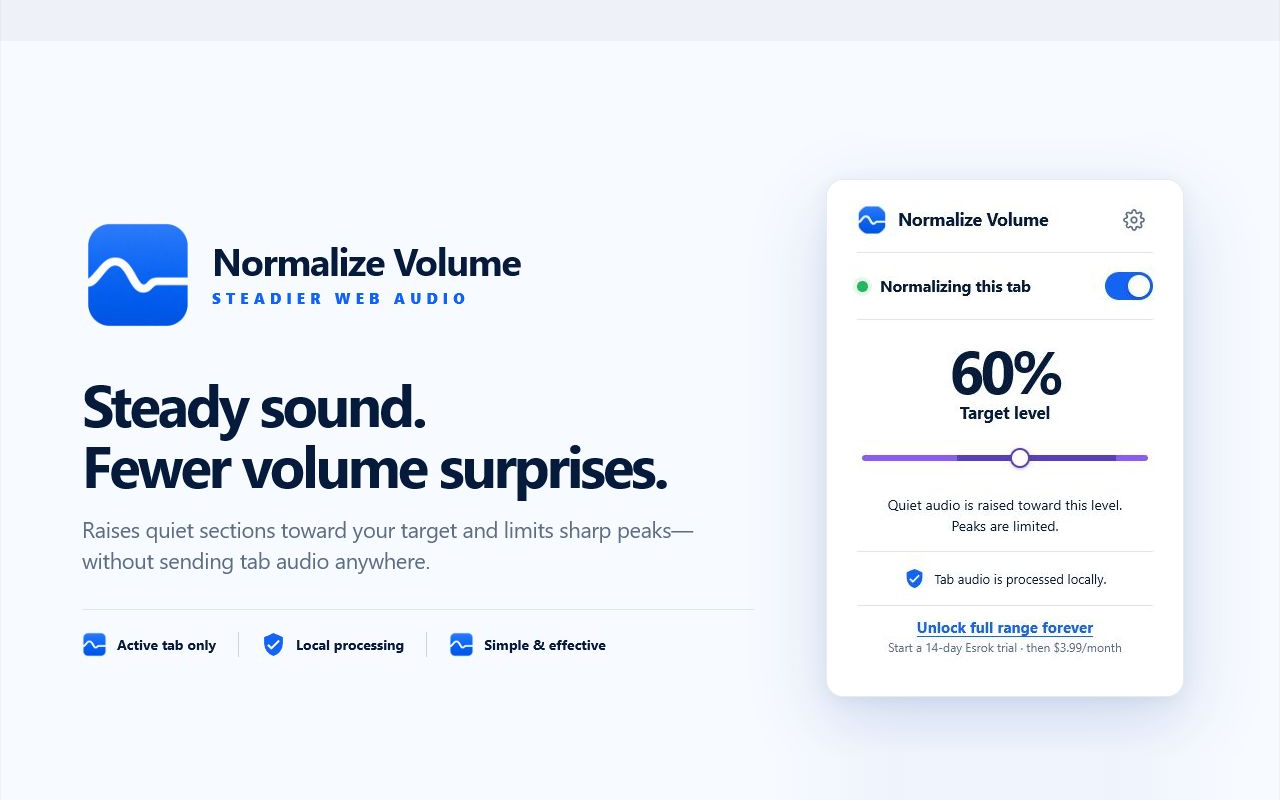
This guide shows how to pin the extension, turn it on for an audio tab, choose a target level, and understand exactly what happens to your sound.
Quick start
Normalize Volume works per tab. Start with a page that is already playing audio so Chrome can give the extension access to that tab.
Click Chrome’s puzzle icon, find Normalize Volume, and select the pin. The blue wave icon will stay within reach on the toolbar.
Play a video, stream, podcast, social post, or any other page with sound. Then click the Normalize Volume icon.
Use the toggle to activate processing for the current tab. Move the slider until voices and background audio feel comfortable.
Important: the target is not a second system-volume control. It tells the extension where to lift quieter audio while limiting sharp peaks. Keep your device volume at a safe level.
The popup
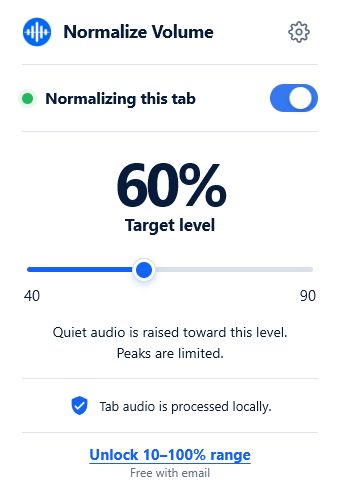
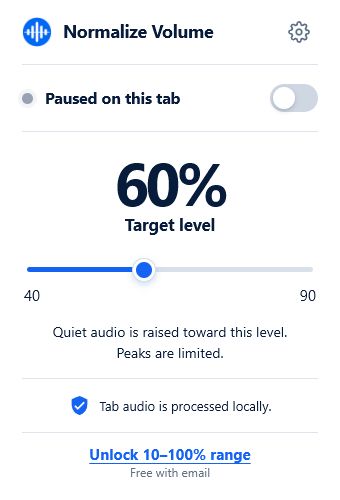
A green dot and the words Normalizing this tab confirm that processing is active. The large percentage is your target level. The switch pauses or resumes the current tab.
How it works
The extension captures audio only from the tab you activate, analyzes it in Chrome, and adjusts the level while that tab continues playing.
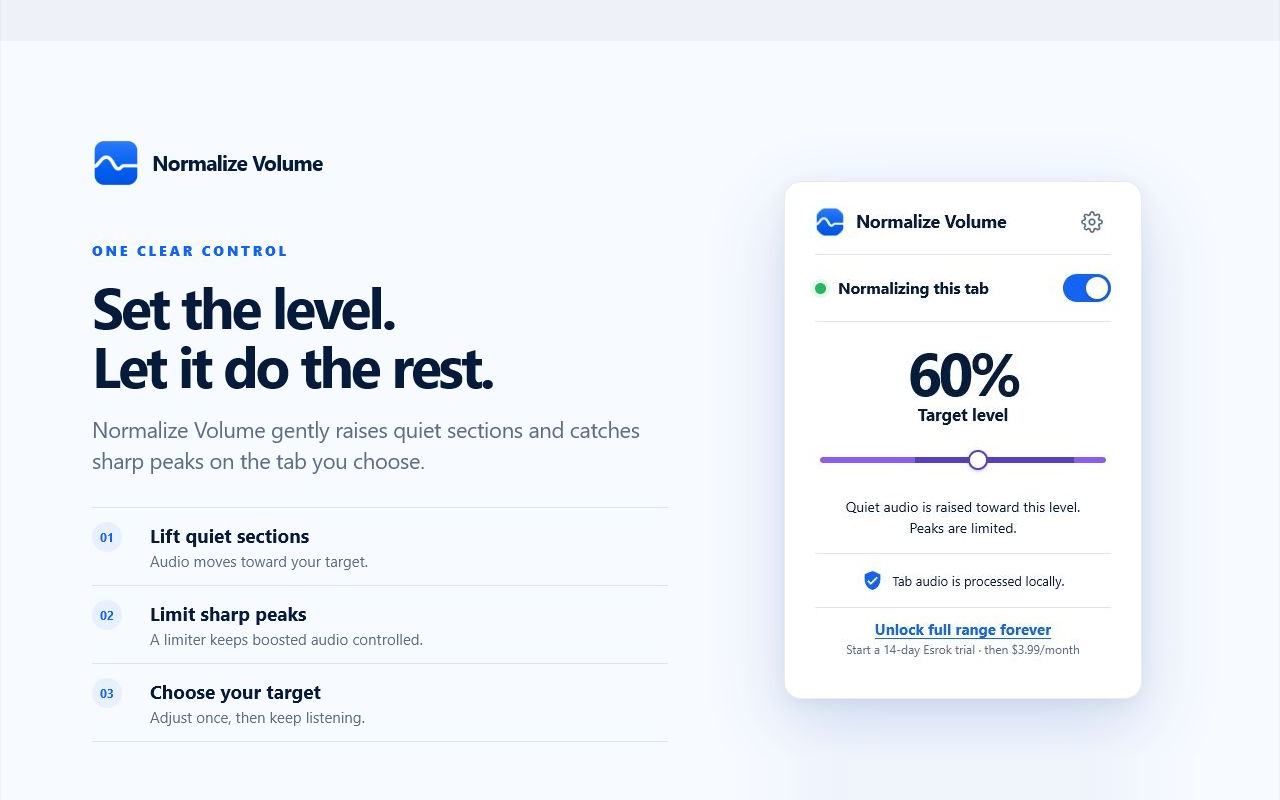
Use a lower target for late-night listening or a higher target when speech is difficult to hear. You can adjust it at any time.
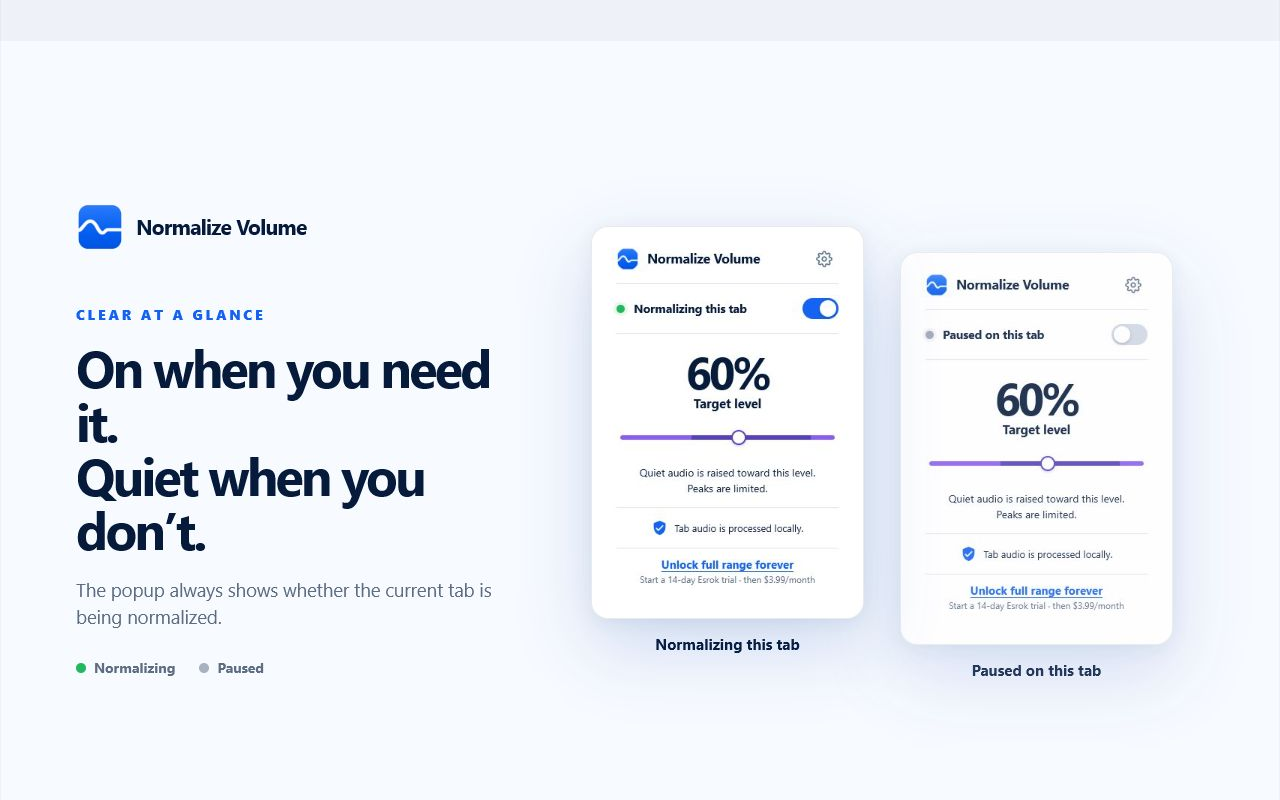
The popup clearly separates active and paused states. Closing the popup does not hide the state when you open it again.
Privacy by design
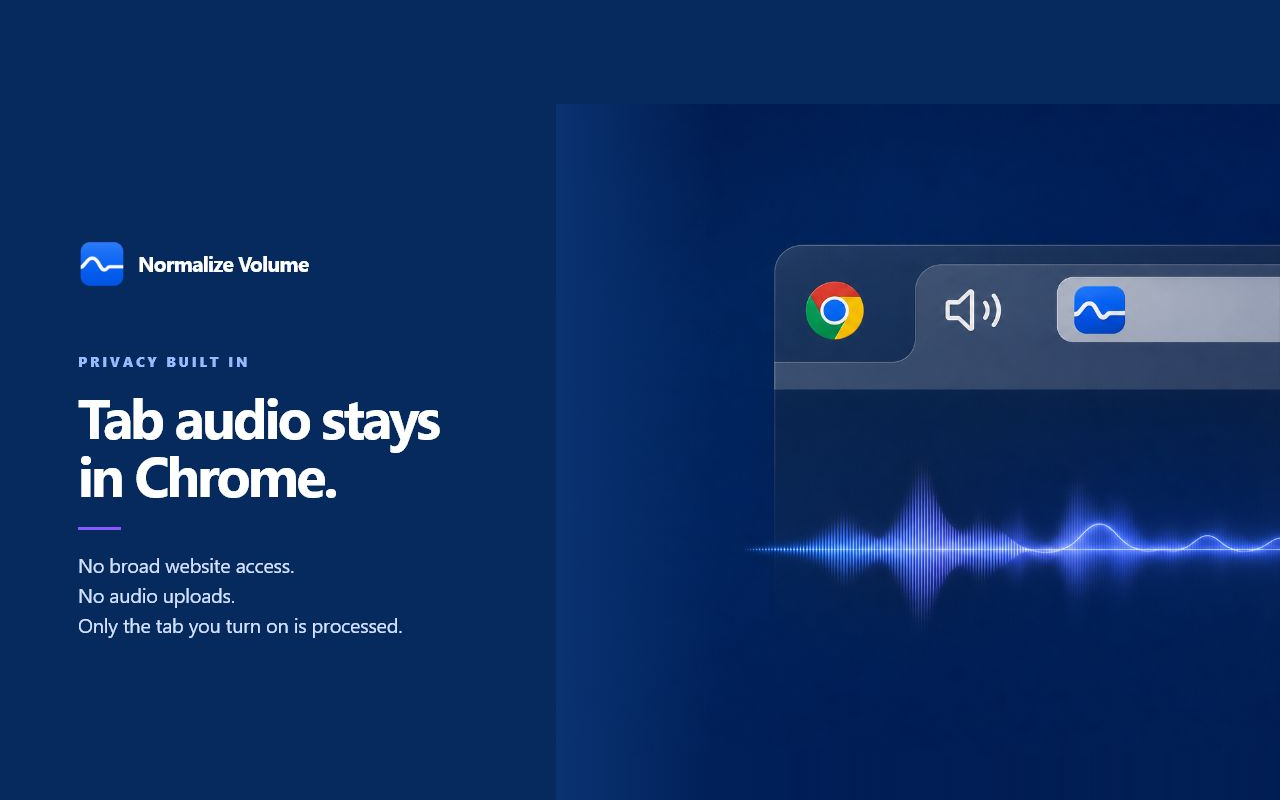
Normalize Volume processes the active tab locally. The extension does not upload or record the audio you listen to and does not request broad access to every website.
Optional full range
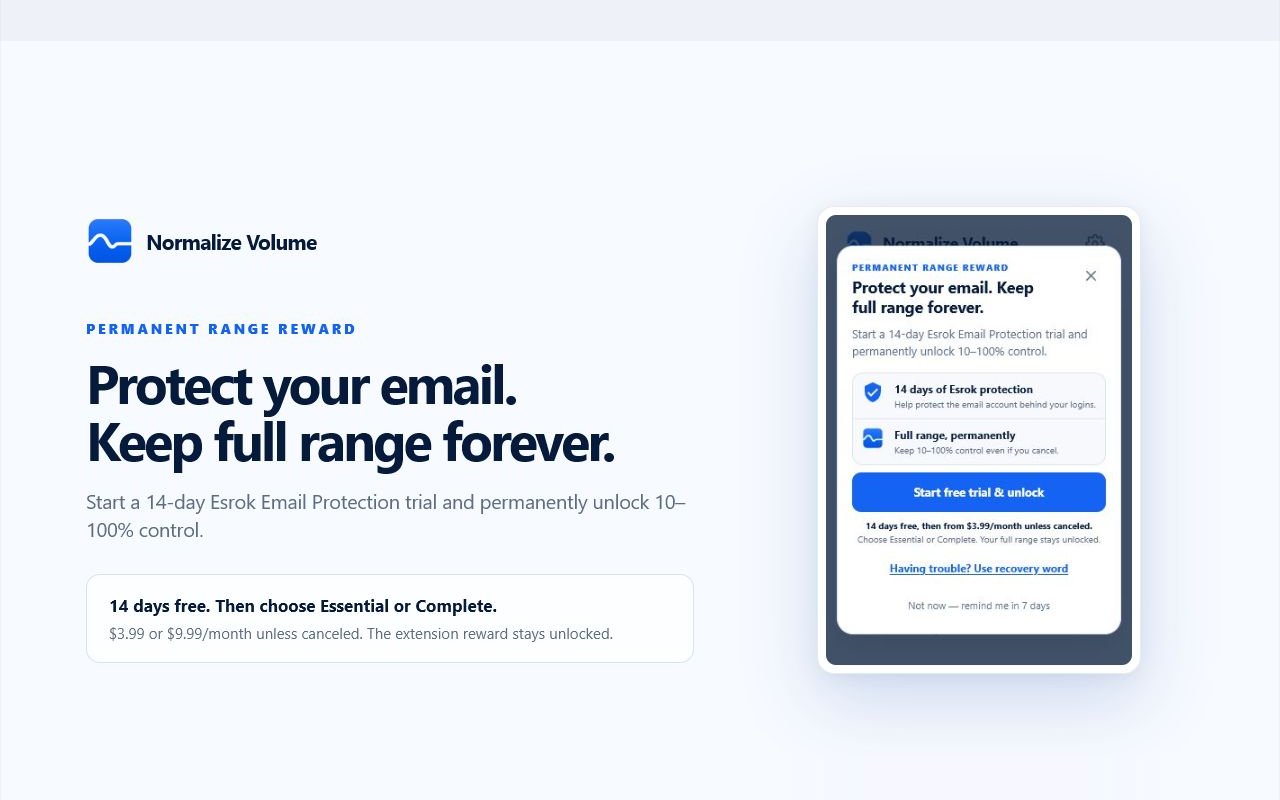
The included range covers everyday listening. If you need finer low-level or high-level control, the extension explains the optional Esrok protection trial before anything starts.
Troubleshooting
Open the popup from the tab that is playing audio. Normalize Volume is intentionally tab-specific.
Chrome internal pages and some protected media cannot be captured. Try a normal website, then reload it once before activating the extension.
Pause the tab, close the popup, reload the page, and turn Normalize Volume on again. Also confirm that the tab is not muted.
A meaningful first test
Do not judge the result from a single loud moment. Use a page with both spoken audio and louder sections, then compare the same short passage with processing active and paused.
Choose a public video or podcast with a quiet voice followed by a louder intro or music section. Set the website player and your device volume to a comfortable, fixed position. Leave both controls unchanged during the comparison.
Play the same 20–30 seconds twice. During the first pass, confirm that the popup says Normalizing this tab. During the second, pause the extension. Listen for the size of the level change, not simply which pass sounds louder.
If speech still feels too quiet, move the target slightly and repeat the sample. Avoid changing the player and system volume at the same time, because that makes it impossible to tell which adjustment produced the result.
Expected result: quieter material should move closer to your chosen target while pronounced peaks feel less abrupt. The extension is not intended to make every sound identical or repair distorted source audio.
Choose the right tool
Several different problems can sound like “bad volume.” This table helps separate level variation from device, player, and recording problems.
| What you hear | Best first action | Why |
|---|---|---|
| Speech is quiet, then an intro or advertisement is suddenly loud | Try Normalize Volume on that tab | This is the kind of changing level the extension is designed to manage. |
| The entire tab is silent | Check the player, tab mute status, and device output | Normalization cannot create audio that Chrome is not sending to the selected output. |
| Voices are muffled or buried under background noise | Try captions, another recording, or an audio-enhancement tool | A level target cannot separate voices from noise or restore missing detail. |
| Only a different Chrome tab is playing | Open the popup from that playing tab | Normalize Volume is tab-specific and does not automatically follow playback. |
Frequently asked questions
No. It processes only the tab where you activate it. Open the popup separately on another audio tab if you want to use it there.
No. Your system and speaker volume still determine the final output. Normalize Volume manages changes within the active tab.
No. Audio processing happens locally in Chrome. Esrok does not receive recordings of the tab audio.
The toggle is off for the current tab. Switch it on while that tab is playing audio.
Need help?
Those details make it much easier to reproduce an audio problem and give you a useful answer.