
Audio spike guard
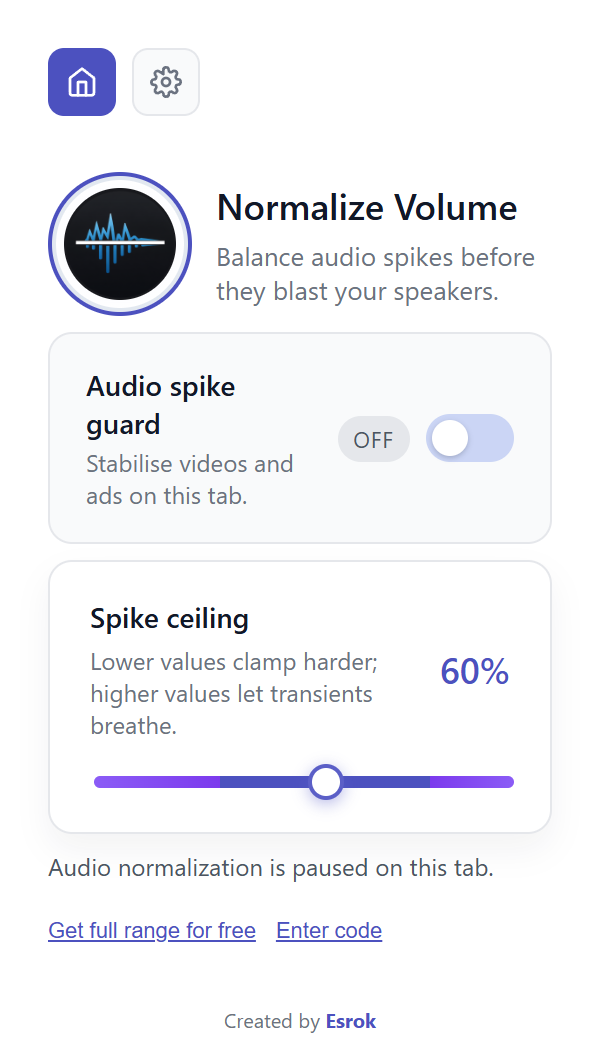
Turn processing on or off for the tab you are using. The status reads “Audio normalization is active on this tab.” when active, or “Audio normalization is paused on this tab.” when paused.
 NORMALIZE VOLUME · 1.08
Reduce abrupt changes in tab audio with Audio spike guard. This guide matches the original logo and controls in version 1.08.
Original 1.08 interface · Documentation updated September 8, 2026
A quiet voice followed by a loud intro, an advertisement, or a sudden music section can make listening uncomfortable. Normalize Volume adjusts captured tab audio locally and limits peaks. It works on the tab where you activate it, not as a system-wide volume controller.
Turn processing on or off for the tab you are using. The status reads “Audio normalization is active on this tab.” when active, or “Audio normalization is paused on this tab.” when paused.
Start at 60%. Lower values clamp harder; higher values let transients breathe. Adjust in small steps while keeping your player and device volume steady. This is not a replacement for your system volume control.
Select the gear icon to find Dark Mode. This changes the popup appearance, not the audio processing. Use the home icon or back arrow to return to the audio controls.
Choose a short passage containing both speech and a louder intro or music section. Listen to the same 20–30 seconds twice: once with Audio spike guard on, then with it off. Leave the website player and device volume unchanged.
Listen for less abrupt changes between quiet and loud sections, not simply which pass is louder. Change only Spike ceiling and repeat. Keep your device volume comfortable; the extension does not guarantee hearing-safe output.
The included range is 40–90%. Version 1.08 offers 10–100% through Get full range for free—not a paid protection trial.
You can keep using the included range without signing up. The unlock window also offers a reminder in seven days. If the message is missing, check spam and use Resend code or Change email. Never share your code with support.
Check the website player, Chrome’s tab mute setting, and your selected output device first. Pause Audio spike guard to compare. If needed, reload the media page and activate it again.
Open the popup from the tab actually playing sound. Compare the same short passage with processing on and off, without changing system volume. Audio that is already even may change very little.
Try an ordinary video or podcast page. Chrome internal pages and restricted media may not be available for tab capture. Normalization cannot repair clipped recordings, remove background noise, or restore missing audio.
Tab audio is processed locally in Chrome; it is not uploaded to Esrok as a recording. Extension preferences use Chrome extension storage. The optional email unlock is separate: submitting that form shares your email for the stated Esrok emails.
Uninstalling the extension does not unsubscribe you from emails. Use the unsubscribe link in an email if you no longer want them. Read our privacy policy for more information.
Contact Esrok support with your Chrome version, installed extension version, the affected website, and whether pausing Audio spike guard changes the problem. Do not send passwords or unlock codes.