The most requested addition
Turn it on.
Let it stay on.
Optional Always on follows you across supported websites and tabs, including reloads and browser restarts.
Enable it once and allow website access in Chrome.
 Normalize Volumeby Esrok
Coming in 1.10
The sound you love.
Fewer clicks to keep it that way.
Your next Normalize Volume brings optional Always on, simpler controls, and a fresh look. With the same familiar audio processing underneath.
1.10 is an upcoming update. It isn’t on the Chrome Web Store yet.
Normalize Volume
A little more balanced.
Raise quiet audio. Limit sharp peaks.
Normalizing this tab
Less adjusting. More listening.
Made simpler where it matters.
The most requested addition
Optional Always on follows you across supported websites and tabs, including reloads and browser restarts.
Enable it once and allow website access in Chrome.
Switch Normalize volume On or Off whenever you like. Your target and Always on preference stay saved.
Clear status messages help when a player needs another try.
Choose any target from 10% to 100%. No email, no unlock code, no extra step.
Start at 60% and adjust while you listen.
A new violet wave logo, more room for your controls, and a refreshed dark mode for quieter evenings.
The original sound engine is preserved.
When the update arrives
Your saved target, appearance and On/Off choice carry over. Always on is new, and starts off.
Make sure Normalize volume is On.
Turn it on and allow Chrome’s website-access request.
Play something and move Target level to suit your listening.
Open Normalize Volume while audio is playing. With Always on enabled, it can try Tab mode. If needed, select Normalize this tab to try again. Chrome needs you to open the extension to start this mode.
Target level shapes the normalization. It isn’t your device volume or a guaranteed peak ceiling. Chrome 119 or later is required.
New: Test Audio
Open Test Audio right from the extension. Choose a sample,
move the target, and hear the difference.
Leave a little thanks and support the work behind Normalize Volume. Tips are always optional.
Previous version
This is the previous Normalize Volume interface, documented on September 8, 2026. It remains here as a reference while 1.10 is being prepared.
chrome://extensions in Chrome’s address bar.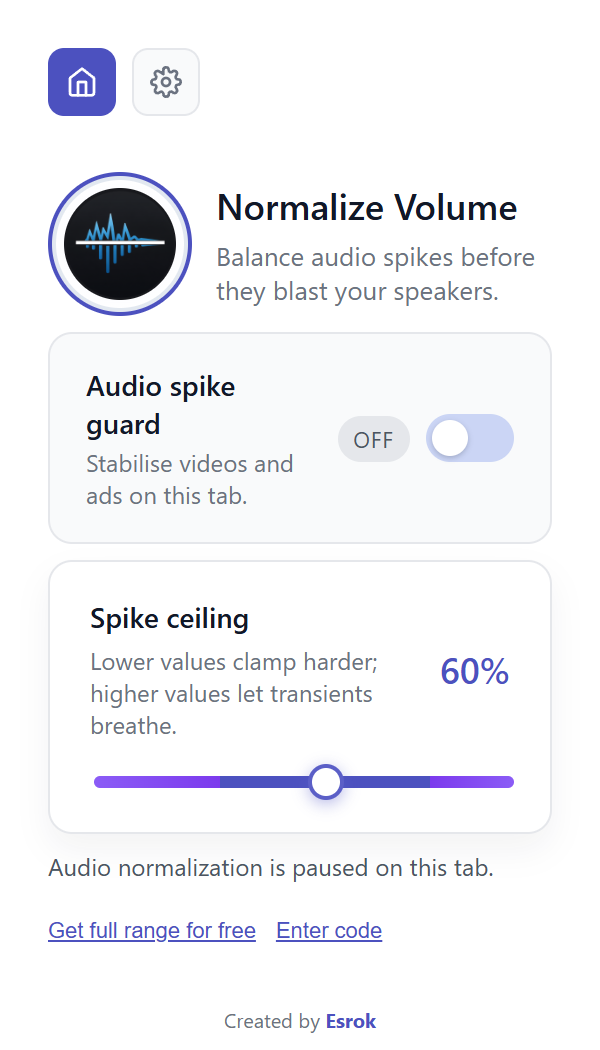
Turn processing on or off for your current tab. The status tells you whether audio normalization is active or paused on that tab.
Start at 60%. Lower values clamp harder; higher values let transients breathe. Adjust in small steps while keeping player and device volume steady.
The gear opens Dark Mode. It changes the popup appearance. Use the home icon or back arrow to return to the audio controls.
The included range is 40–90%. The full 10–100% range is a free email-code unlock.
You can use the included range without signing up. If your email is missing, check spam and use Resend code or Change email. Never share your code with support.
Check the player, Chrome’s tab mute setting and your output device. Pause Audio spike guard to compare. If needed, reload the media page and activate it again.
Open the popup on the tab playing sound. Compare the same short passage with processing on and off. Audio that is already even may change very little.
Try an ordinary video or podcast. Chrome internal pages and restricted media may be unavailable. Normalization cannot fix clipped recordings or remove background noise.